Maintain Your Controller
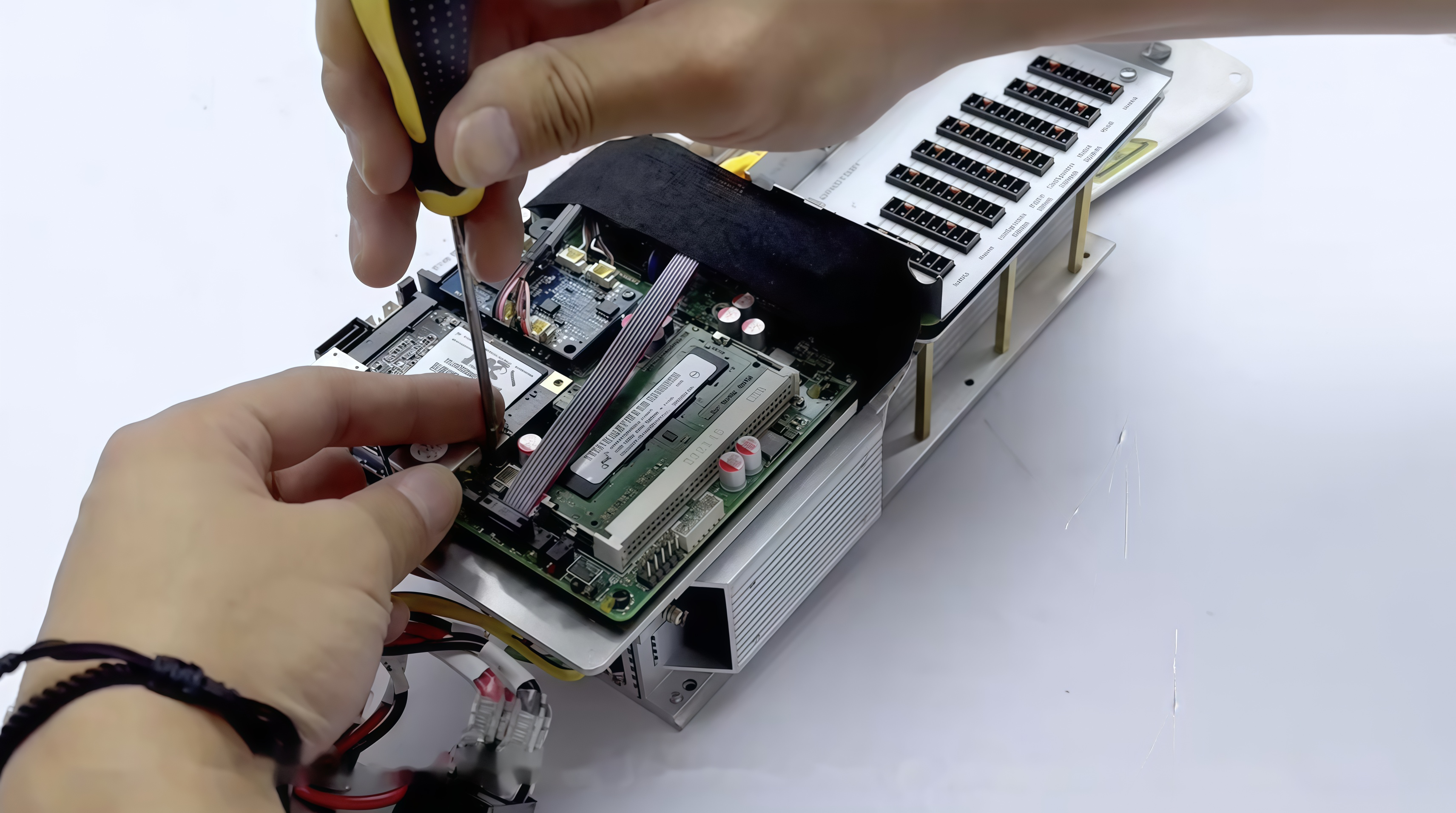
USB · SSD Replacement
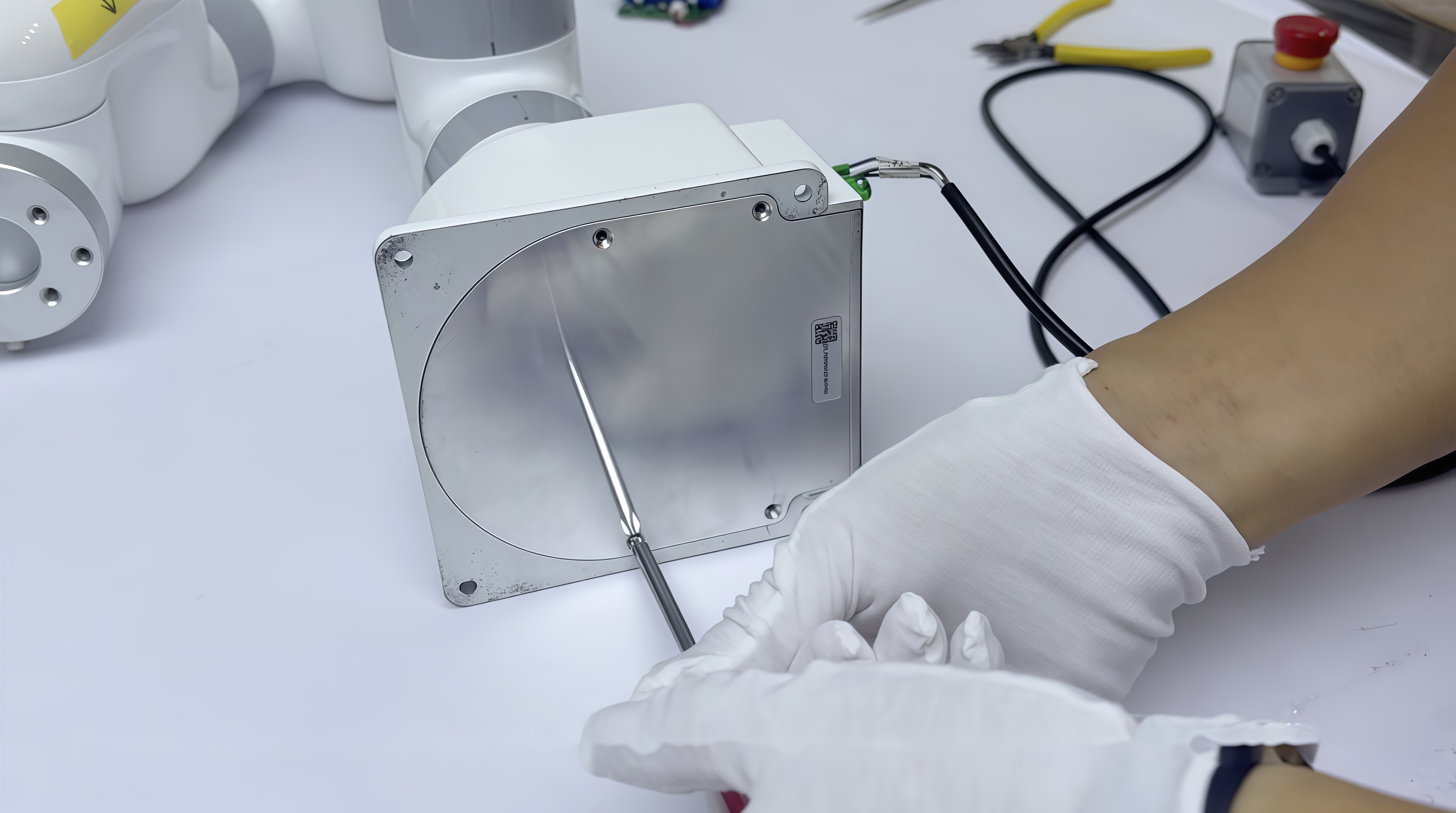
Replace the Lite 6 Base Battery
Battery · Wiring · Reassembly
Topic 03
Troubleshoot Digital I/O
Input · Output · Diagnostics


Learn how to maintain and troubleshoot your UFACTORY robot with practical, step-by-step guides. Maintenance & Troubleshooting covers controller component replacement, battery maintenance, gripper disassembly, and digital I/O diagnostics to help keep your robot operating reliably.
From Essential Maintenance to Troubleshooting
Maintain Your Controller
USB · SSD Replacement
Replace the Lite 6 Base Battery
Battery · Wiring · Reassembly
Topic 03
Troubleshoot Digital I/O
Input · Output · Diagnostics
Learn essential maintenance and troubleshooting procedures for UFACTORY robots, including controller storage replacement, battery maintenance, gripper disassembly, and digital I/O diagnostics.
More to Come
Maintenance & Diagnostics
Practical Guides
Browse the lessons and select one to see what it covers and what you'll learn.
Replace the Lite 6 Base Battery
4 minBattery Replacement · Wiring · Reassembly
Replace Controller USB Storage with an SSD
6 minController · USB Storage · SSD Installation
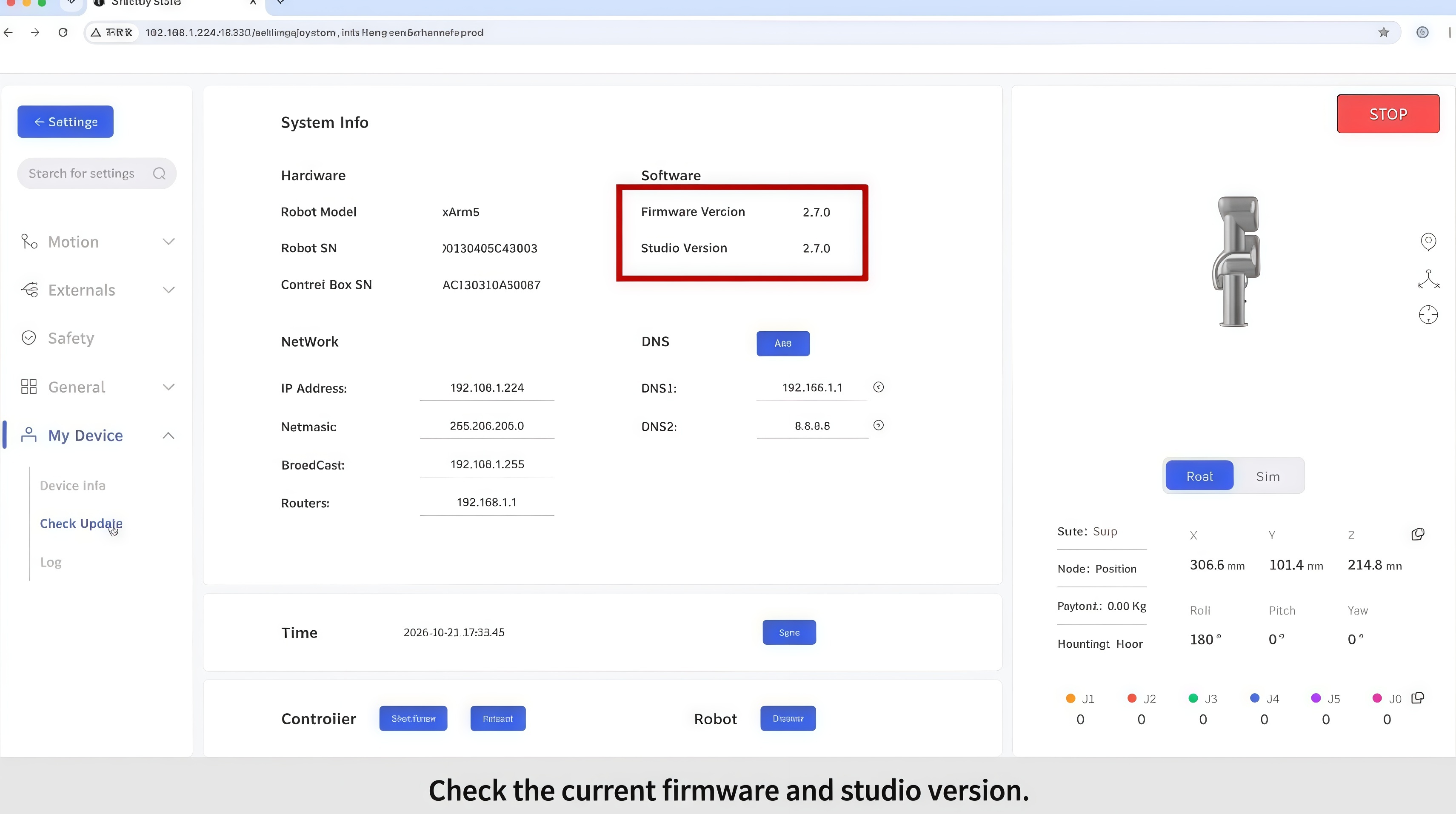
Update Controller Firmware and UFACTORY Studio
2 minFirmware Update · Studio Update · Online & Offline
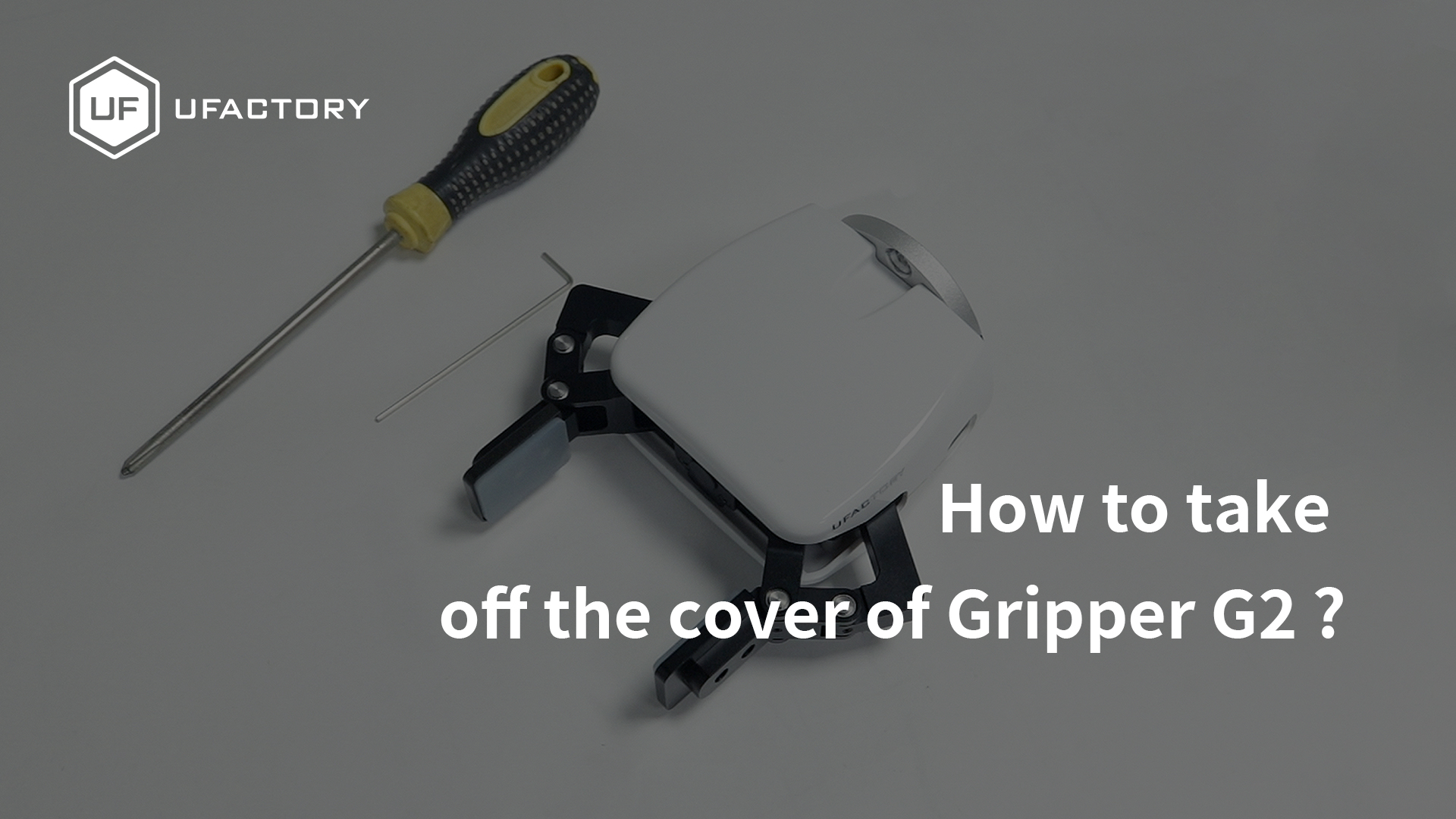
Remove the G2 Gripper Cover
1 minG2 Gripper · Disassembly · Cover Removal
Check Digital I/O Signals
2 minController I/O · Tool I/O · Signal Verification
Learn how to replace the Lite 6 base battery, including removing the controller assembly, disconnecting and reconnecting cables, verifying the replacement battery board, and reassembling the robot base.
Remove the controller assembly from the Lite 6 base
Disconnect and remove the original battery board
Verify the replacement battery board using status indicators
Reconnect the cables and reassemble the robot base
Learn how to replace your UFACTORY robot controller's USB storage with an SSD, including disassembling the controller, disconnecting internal components, installing the SSD, and reassembling the controller.
Remove the I/O modules and open the controller enclosure
Disconnect internal cables and access the controller module
Remove the USB storage device and install the SSD
Reconnect the cables and reassemble the controller
Learn how to update your UFACTORY robot controller firmware and Studio software using two methods: online updates through UFACTORY Studio and offline installation with xArm-tool-gui.
Check the current controller firmware and Studio versions
Download and install updates through UFACTORY Studio
Install firmware and Studio updates offline using xArm-tool-gui
Restart the controller and verify the updated versions
Learn how to remove the UFACTORY G2 Gripper cover, including opening the gripper in UFACTORY Studio, removing the mounting screws, and carefully taking off the housing.
Open the G2 Gripper using UFACTORY Studio
Remove the SN label and four screws from the base, keeping the label for after-sales service
Remove the four screws from the top of the gripper
Carefully remove the gripper cover to expose the internal components
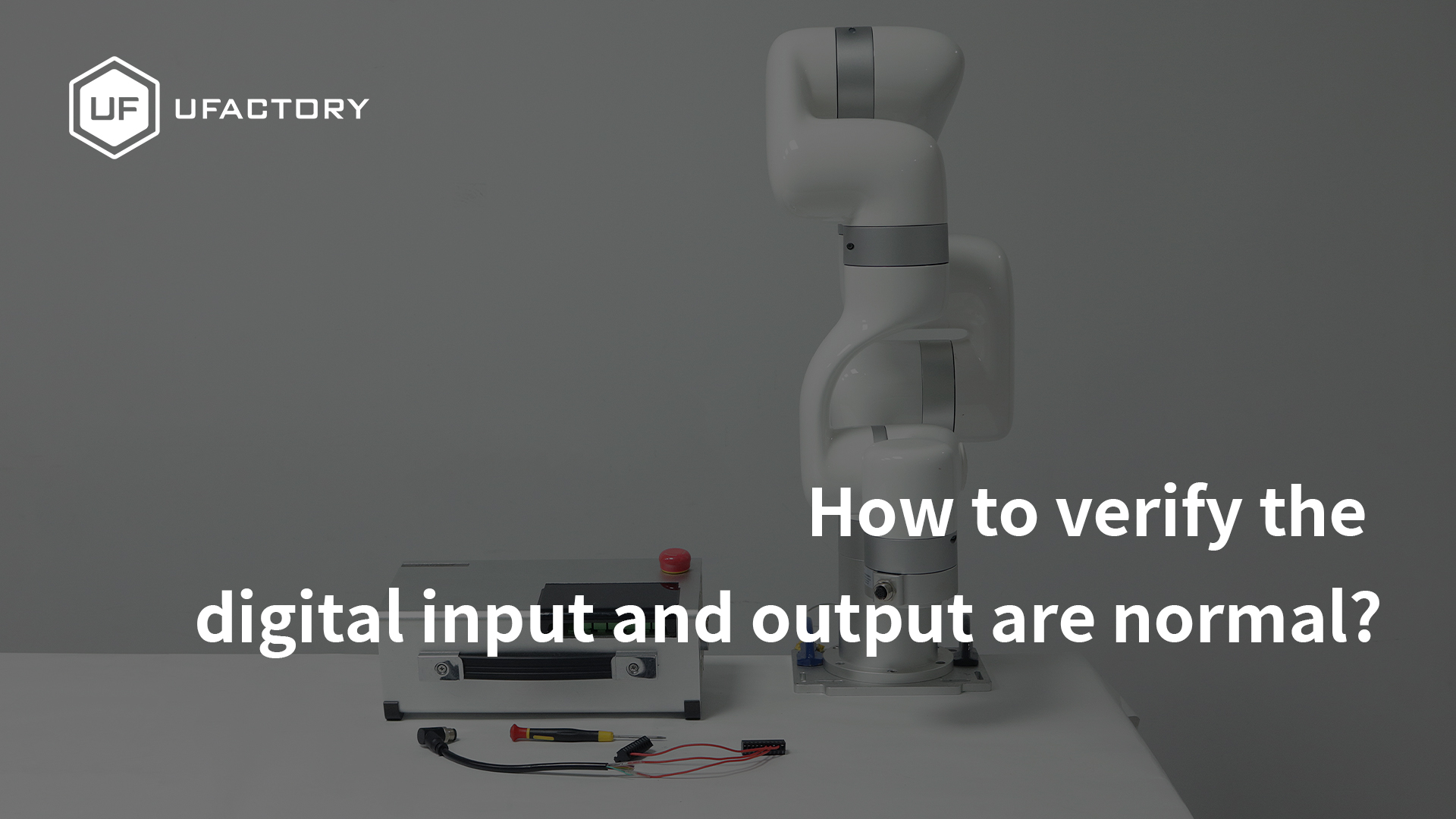
Learn how to verify the digital input and output signals of your UFACTORY robot. This video demonstrates connecting the controller I/O terminals and end-effector I/O cable, then checking signal states in UFACTORY Studio.
Identify the digital I/O terminals on the robot controller
Connect the controller's digital input and output terminals for testing
Connect the end-effector I/O adapter cable to the robot arm
Check digital input and output states in UFACTORY Studio to verify signal response
Build your foundational skills or explore advanced techniques to expand your UFACTORY robot's capabilities.
Revisit the essentials of robot setup, programming, safety settings, and motion optimization through step-by-step lessons focused on building a pick-and-place application.
Explore advanced robot capabilities, including I/O-triggered tasks, PLC integration, Blockly functions, firmware updates, and linear motor installation.